
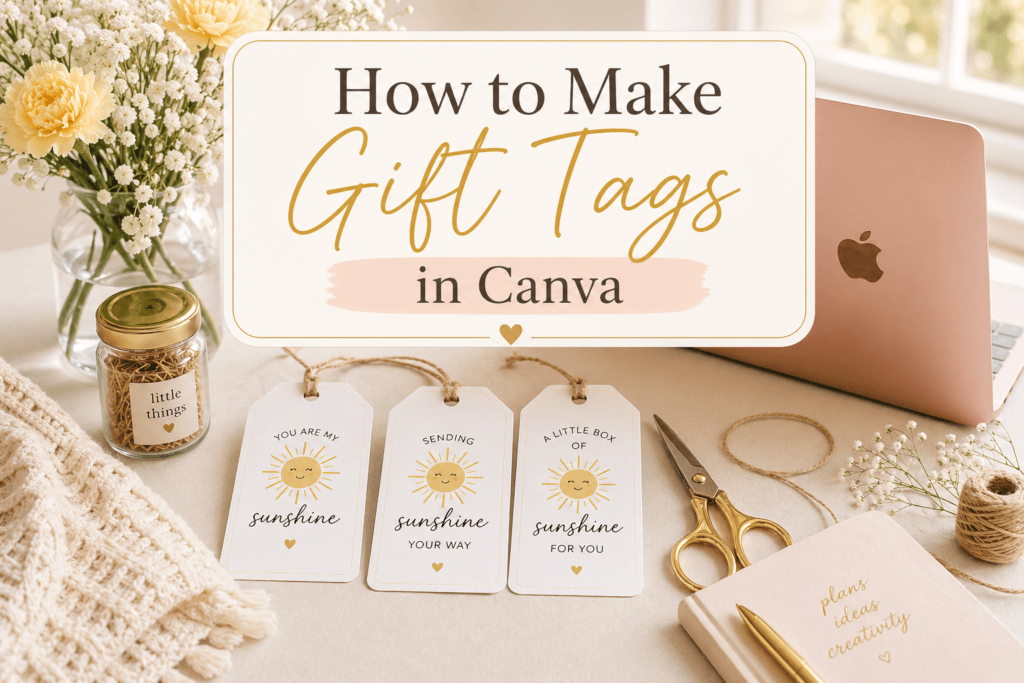
If you’ve ever wondered how to make gift tags in Canva, you’re in the right place. Creating your own gift tags can feel surprisingly simple, even if you’ve never designed anything before. And honestly, it can also be a really cozy and enjoyable little creative moment.
Whether you’re making tags for personal gifts, freebies for your blog, or even digital products to sell, Canva gives you everything you need in one place.
Let’s walk through it together, step by step.
Why Canva Is Perfect for Gift Tags
Before we jump in, it helps to understand why Canva works so well for this.
You don’t need:
- design experience
- expensive software
- complicated tools
Instead, Canva offers:
- ready-made templates
- drag-and-drop design
- free elements and fonts
If you’re just starting out, this makes everything feel much more approachable.
What You’ll Need Before You Start
You can keep this very simple.
Here are a few things that might help:
- A free Canva account
- A general idea of your theme (sunshine, floral, minimal, etc.)
- A message for your tag (example: “A little something to brighten your day”)
That’s really it. You can figure out the rest as you go.
Step 1: Open Canva and Choose Your Size
Start by going to Canva and clicking “Create a Design.”
For gift tags, a good starting size is:
- 2 x 3.5 inches (standard tag size)
- or create a custom size if you prefer
If you’re planning to print multiple tags on one page later, you can design one tag first and duplicate it.
👉 External reference: Canva design basics at https://www.canva.com
Step 2: Choose a Template (Optional but Helpful)
If you want to make things easier, you can search:
- “gift tag”
- “label”
- “tag template”
Templates can give you a starting point, but you can always customize everything.
If you prefer a more personal look, you can also start with a blank canvas.
Step 3: Add Your Text
Now comes the fun part—adding your message.
Click Text → Add a heading
Try something simple like:
- “A Little Something to Brighten Your Day”
- “Just for You”
- “With Love”
Keep in mind:
- Use 1–2 fonts only
- Keep text readable (especially for printing)
- Center your text for a clean look
Step 4: Add Design Elements
This is where your tag starts to feel alive.
Search for elements like:
- sun
- flowers
- hearts
- leaves
- sparkles
For a cozy sunshine theme, you might use:
- soft yellow tones
- simple floral accents
- light, airy spacing
Try not to overcrowd your design. A little space can make it feel more premium and calm.
Step 5: Adjust Colors and Style
To keep everything cohesive:
- Stick to 2–3 main colors
- Use soft tones (your cozy aesthetic works beautifully here)
- Match text color with your theme
If you’re creating multiple tags, keeping the same color palette helps everything feel like a set.
Step 6: Duplicate and Create Variations
Instead of making one tag, you can create a small set.
Just duplicate your page and:
- change the message
- swap colors slightly
- adjust elements
This is a simple way to turn one idea into a mini bundle.
Before downloading, check:
- Text is not too close to edges
- Everything is centered
- Size looks correct
Then:
- Click Share → Download
- Choose PDF Print (best for quality)
- Turn on crop marks if needed
Step 8: Print and Cut
Once downloaded:
- Print on cardstock for best results
- Cut using scissors or a paper cutter
- Punch a hole at the top
And that’s it—you now have your own custom gift tags.
A Simple Idea You Can Try
If you’re not sure where to start, a “Jar of Sunshine” theme is a really lovely option.
You can pair your tags with:
- small treats
- notes
- yellow-themed items
👉 Optional inspiration: How to Make a “Jar of Sunshine” (Easy DIY Gift on a Budget)
Can You Sell Gift Tags Made in Canva?
Yes, you can.
Many creators use Canva to:
- sell printable gift tags
- create digital downloads
- offer freebies to grow their audience
Just make sure:
- you follow Canva’s content license rules
- you don’t resell templates as-is
Want a Ready-Made Example?
If you’d like to see how a finished design looks:
👉 Free Sunshine Gift Tags Download
You can download it, print it, and even use it as inspiration for your own designs.
Final Thoughts
Learning how to make gift tags in Canva doesn’t have to feel complicated. Once you try it, you might find it’s actually a relaxing and creative process.
You can keep it simple, take your time, and slowly build your own style.
And who knows—this small idea could turn into:
- a creative hobby
- a side income
- or something you truly enjoy sharing